
Skyscanner Price Alerts: How to Track Fare Drops (2026)
✈️ Flight Hack Spec Card
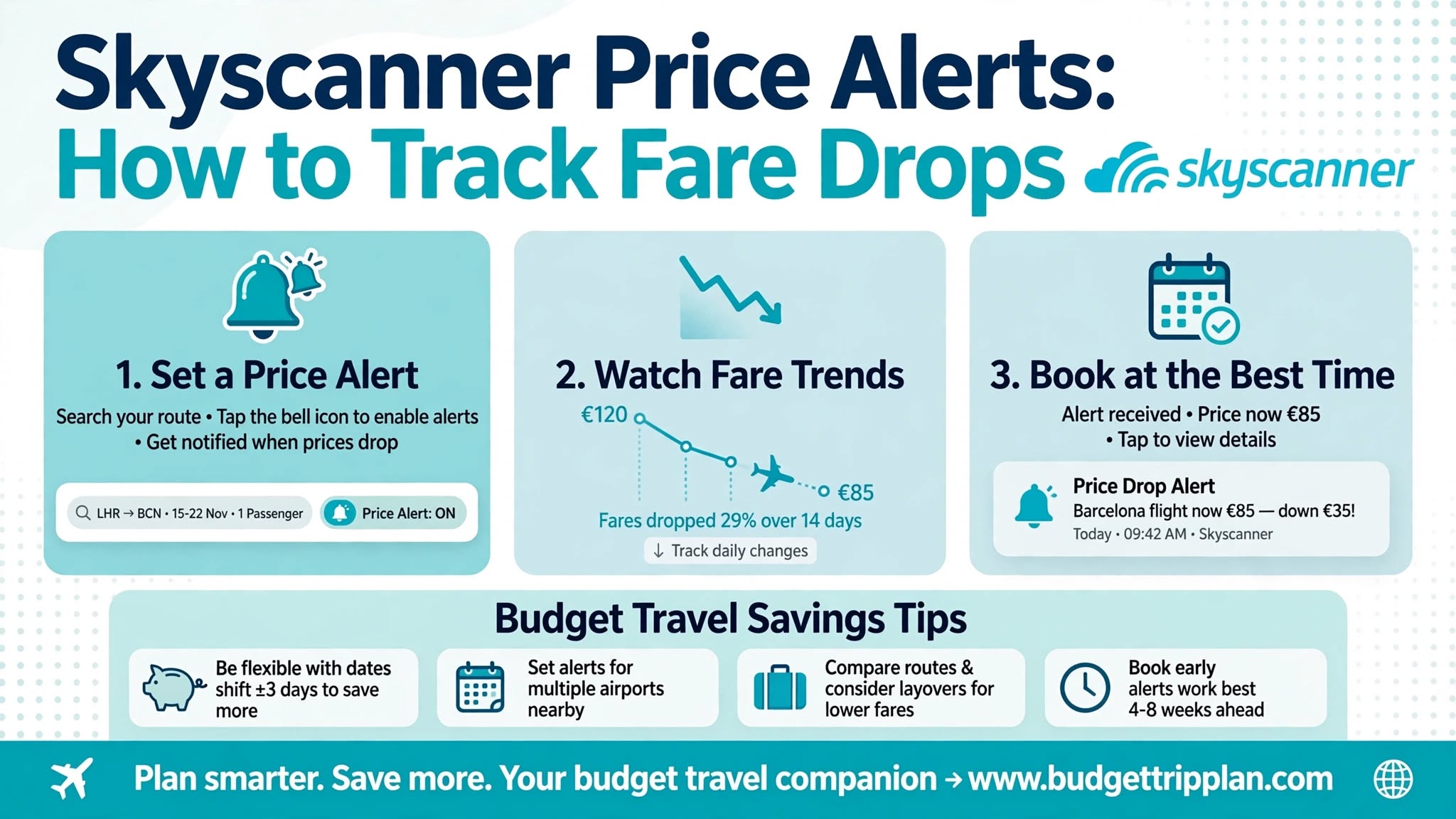
Quick Steps & Summary
Full Flight Hack Guide
Quick Answer (TL;DR)
Skyscanner Price Alerts track the fare for a route you search and email you when the price changes. They are free and need only a Skyscanner account. Alerts do not let you set a target price, and a change can be an increase as well as a drop. Use them to follow specific routes and dates, and book as soon as the price matches your budget.
---
What Are Skyscanner Price Alerts and How Do They Work?
Flight prices change often because of seat availability, demand, and airline pricing systems. Checking the same route by hand every day takes time.
Skyscanner Price Alerts reduce that work:
---
Step-by-Step Guide: How to Set Up Skyscanner Price Alerts
Step 1: Sign In to Your Skyscanner Account
You need a free Skyscanner account to receive alerts. If you are not signed in when you turn on an alert, Skyscanner asks you to log in or create an account.
Step 2: Search Your Route and Dates
1. Open the Skyscanner website or app.
2. Enter your departure airport and destination.
3. Choose your travel dates.
4. Search for flights.
Step 3: Turn On Price Alerts
Step 4: Add the App for Alerts on Your Phone
The Skyscanner app lets you follow your alerts and saved flights on your phone. Skyscanner also lists price-drop notifications of at least 20% as an app feature, so install it if you want that extra signal.
---
Smart Booking Tactics and Pro Tips
1. Set alerts for several date combinations: If your dates are flexible, create a few separate alerts, such as a Tuesday departure and a Thursday departure.
2. Track nearby airports: Set separate alerts for airports near your destination, for example London Heathrow (LHR), Gatwick (LGW), and Stansted (STN).
3. Decide your target price first: Skyscanner alerts notify you when a price changes, but you cannot set a price threshold. The change might even be an increase, so know your budget in advance and act when the fare matches it.
4. Pick destinations first, then track them: The "Everywhere" search does not work with price alerts. Use it to find promising places, then set alerts for the specific routes you like. Our Skyscanner Everywhere Guide explains how to build that shortlist.
5. Double-check before booking: Open the booking page and confirm the fare, baggage rules, and total price before you pay.
---
How to Manage or Turn Off Skyscanner Price Alerts
1. Log in to your Skyscanner account on the app or website.
2. Open your alerts or saved flights list.
3. Switch off any alert you no longer need.
After you book a flight, turn its alert off so you do not keep receiving emails for it.
---
Troubleshooting: Why Am I Not Getting Alerts?
If the fare has not changed, Skyscanner has nothing new to send you.
---
Frequently Asked Questions
Are Skyscanner Price Alerts free?
Yes. You only need a free Skyscanner account. There are no extra fees or upgrades for alerts.
How often does Skyscanner send alerts?
Skyscanner emails you when the price of a tracked flight changes. How often that happens depends on how often the fare moves. A change can be a drop or an increase.
Does a price alert guarantee the fare?
No. Fares can change quickly when seats sell, and the price in an alert reflects the fare at that moment. Book soon after an alert, and confirm the price on the booking page.
What is the difference between Skyscanner and Google Flights alerts?
Both tools track prices. Google Flights lets you track a route for any dates, which suits flexible trips. Skyscanner alerts focus on specific routes and dates and often show deals from online travel agencies as well as airlines. Using both gives wider coverage. See our Google Flights Price Alerts Guide for the Google setup.
---
Final Verdict
Skyscanner Price Alerts are an easy, free way to automate part of your flight search. Set alerts for a few routes and dates, decide your target price in advance, and book when the fare matches it. Always confirm the final price before you pay.
Next step: Search your upcoming trip on Skyscanner, turn on Price Alerts, and wait for the fare to hit your target. Subscribe to our newsletter for more flight hacks.
Related Reading: Google Flights Price Alerts Guide | Google Flights Explore Guide | Flexible Routing Guide | Skyscanner Everywhere Guide
---